
How to Install a Wireless Security Camera System (Step-by-Step for Beginners)
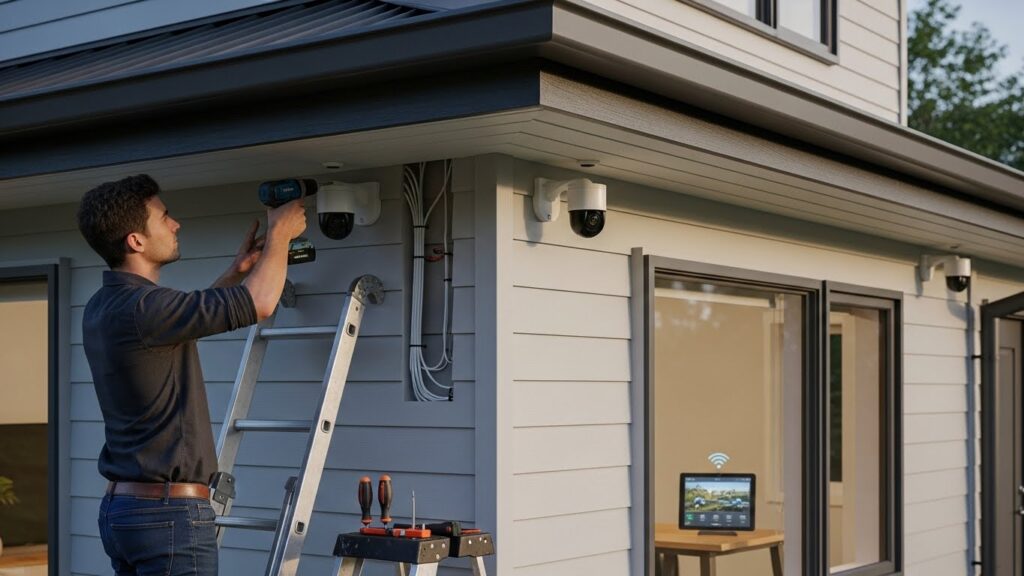
Installing a wireless security camera system might sound complicated at first, especially if you’ve never worked with smart devices before. The truth is, most modern wireless cameras are designed for everyday users, not technicians. With a little planning and patience, you can set up your entire system in a single afternoon.
This guide explains the process step-by-step in plain language, so you know exactly what to do—without feeling overwhelmed.
Table of Contents
Why Wireless Security Cameras Are So Popular
Wireless security cameras have quickly replaced traditional wired systems, and for good reason. They don’t require drilling holes through walls for long cables, and most of them can be controlled directly from your phone.
People usually choose wireless cameras because:
- They are easier to install.
- They work with mobile apps.
- They send instant alerts when motion is detected.
- They can be placed almost anywhere.
- They are ideal for both renters and homeowners.
For everyday home security, wireless systems are often more practical than wired ones.
What to Do Before You Start Installing
Taking a few minutes to prepare will save you a lot of frustration later.
Pick the Right Spots First
Before touching any tools, walk around your home and decide where cameras make the most sense. Entry points like doors and windows are the highest priority. Other useful areas include driveways, backyards, and hallways.
Avoid placing cameras where they face strong sunlight or reflective surfaces, as this can reduce image quality.
Check Your Wi-Fi Signal
Wireless cameras depend heavily on Wi-Fi. Use your phone to check signal strength in the areas where you plan to install cameras. If the signal is weak, the camera may disconnect or lag.
If needed, a Wi-Fi extender can solve this problem easily.
Step-by-Step Installation Guide
Step 1: Unbox and Power Up the Cameras
Start by unpacking everything and charging the cameras if they run on batteries. Fully charged cameras make the setup process smoother and prevent interruptions.
If your cameras use a power adapter, plug them in nearby for now.
Step 2: Download the App and Create an Account
Almost all wireless camera systems use a mobile app.
- Download the official app from the Play Store or App Store.
- Create an account using your email.
- Log in and follow the on-screen instructions.
This app is where you’ll watch live footage, get alerts, and change settings later.
Step 3: Connect Each Camera to Wi-Fi
Inside the app, choose the option to add a new camera. Most systems guide you through the process step by step. You may need to scan a QR code on the camera or press a setup button.
Make sure you connect to the correct Wi-Fi network and enter the password carefully. Many cameras work best on 2.4 GHz Wi-Fi, which is common in most homes.
Step 4: Mount the Cameras in Their Final Locations
Once the cameras are connected, move them to their chosen spots.
For wall-mounted cameras:
- Use the mounting template if provided.
- Drill small holes if necessary
- Secure the mount with screws.
- Attach the camera and adjust its angle
For cameras with magnetic bases or stands, simply place them on a stable surface and double-check the view.
Step 5: Adjust the View and Settings
Open the live view in the app and make small adjustments. Tilt the camera until it covers the area you want without capturing unnecessary movement, such as passing cars or tree branches.
You can also:
- Set motion sensitivity
- Turn on night vision
- Customize alert notifications
- Adjust video quality
These small changes make a big difference in daily use.
Step 6: Test Everything Properly
Before considering the job done, test the system.
Walk in front of each camera and check if alerts are triggered. Review recorded clips and confirm that night vision works after dark.
If something doesn’t look right, now is the best time to fix it.
Simple Tips for Long-Term Use
- Clean camera lenses every few weeks
- Keep apps and firmware updated.
- Use strong passwords for your account.
- Enable two-factor authentication if available
These habits help keep your system reliable and secure.
Common Mistakes People Make
Many issues come from small oversights, such as placing cameras too high, ignoring weak Wi-Fi, or skipping updates. Another common mistake is pointing cameras toward neighbors’ property, which can cause privacy concerns.
Taking your time during setup helps avoid these problems.
Final Thoughts
Installing a wireless security camera system doesn’t require special skills or expensive tools. With a clear plan and a bit of patience, anyone can do it. Once installed, the peace of mind you get from being able to check your home anytime is well worth the effort.
If you’re serious about improving home security, a wireless camera system is a smart and practical place to start.